Enrolling a COBRA Participant
To enroll a Consolidated Omnibus Budget Reconciliation Act (COBRA) participant in a benefit plan, use the Employee Benefits Enrollment (COBRA) form. Access this form by clicking Switch to Cobra Mode at the top of the Employee Benefits Enrollment form. With the exception of a few field labels, this is the same as the usual benefit enrollment form.
COBRA enrollees are:
| • | A terminated employee |
| • | An employee who no longer has benefits through the company (for example, they dropped from full-time to part-time) |
| • | A dependent of an employee |
Note: Click Switch to Employee Mode to view the non-COBRA version of this form.
To establish the amount of coverage, premium rates, and other information, use the Coverage Detail panel.
Defining Coverage Details
To define the coverage details:
| 1. | On the Employee Benefits Enrollment (COBRA) form, go to Coverage Detail panel. |
| Use this option | To define this |
|---|---|
| Existing Effective Date | The date on which the selected plan becomes effective. If this is a new enrollment record, enter the same date as the Coverage Starts date. |
| Plan Type | The benefit Plan Type |
| Updated Carrier | Whether the insurance carrier has been notified of any coverage changes |
| 2. | Click Save. |
Maintaining COBRA Participant Enrollment
This section covers COBRA Participant Enrollment maintenance and includes steps for performing actions such as terminating dependent coverage.
Terminating COBRA Dependent Coverage
There are multiple methods for terminating COBRA dependent coverage depending on your practices AND depending on the circumstances under which dependent coverage is terminated. Some of the methods include:
-
Entering a Coverage End Date on the associated Coverage Detail record.
-
Adding a new Coverage Detail record for an existing COBRA participant with the same Coverage Effective Date/ Qualifying Event Date.
-
Adding a new Coverage Detail record for an existing COBRA participant with a new Coverage Effective Date/Qualifying Event Date.
-
Adding a new Coverage Detail record for a new COBRA participant (where the dependent was previously covered under an employer plan but NOT as a COBRA participant.)
The method you choose can determine the way important dates (such as Qualifying Event Date, Coverage Effective Date, and Coverage End Date) are recorded in the system. For more details on how dates are derived and recorded based on the termination method used, see the "How Dates Are Determined When Terminating Dependent Coverage" section of this topic.
To terminate COBRA dependent coverage:
-
On the Employee Benefits Enrollment form in the Coverage Detail panel, add a new Coverage Detail record (recommended) or update the Coverage End Date of an existing Coverage Detail record and then click Save on the Employee Benefits Enrollment form.
Note: You do not need to switch to COBRA view to perform these steps.
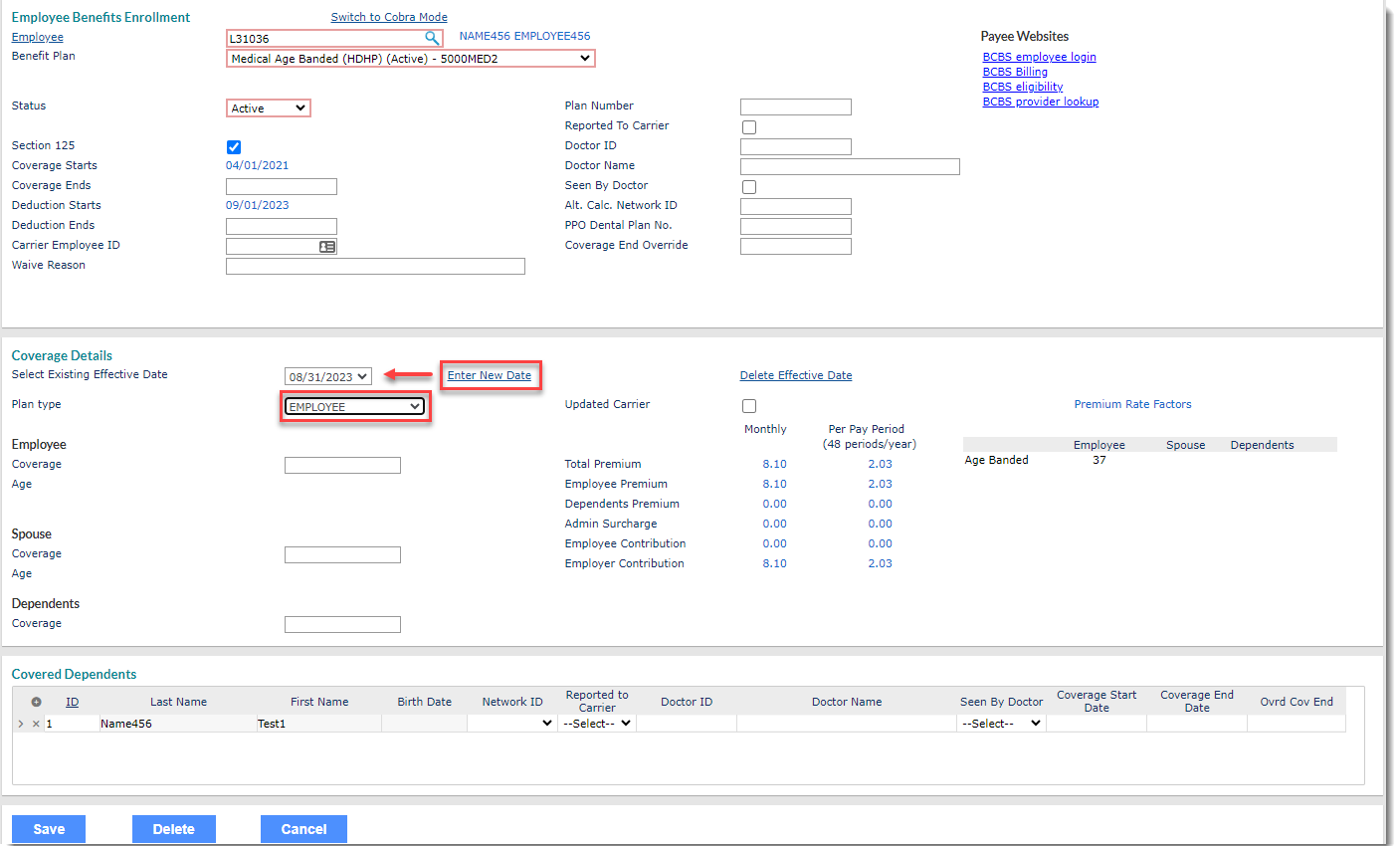
In our example, we are adding a new Coverage Detail record where the dependent already has an existing COBRA participant record. We have clicked Enter New Date to add a different Coverage Effective Date, and we have changed the Plan type from EMPLOYEE + CHILD to EMPLOYEE as we are terminating dependent coverage for the child:
Then, in the "Covered Dependents" section, we removed the child dependent and clicked Save.

The following message displays:
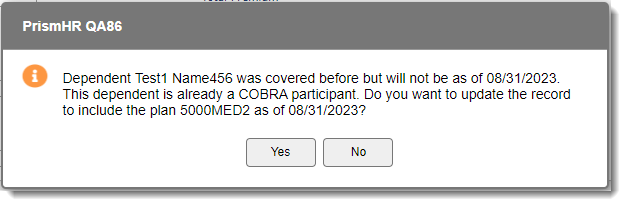
Note: The message verbiage varies slightly depending on whether the terminated dependent has an existing COBRA Participant record. As previously mentioned, message dates may also vary depending on the termination method used. Here is an example of the message you receive when the dependent is not an existing COBRA Participant.

Additionally, if you are terminating multiple dependents, the message repeats for each dependent which allows you to specify for each dependent whether to simply terminate their coverage by selecting No or whether to terminate the existing coverage but then also promote new or updated coverage details to a new or updated COBRA Participant record by selecting Yes.
-
What do you want to do?
-
Select Yes if you want to add the new coverage details to a COBRA Participant record. This is the option you select when you are terminating dependent coverage in order to establish new or update coverage details.
-
Select No if you do not want to include the plan under new effective dates. This is the option you select when you want to terminate coverage completely without promoting any new or updated coverage details to a new or updated COBRA Participant record. The existing COBRA Participant record is updated to reflect the Coverage End Date only.
-
-
If you select Yes:
-
The COBRA Dependent Participant Questions form displays as shown in the image below:
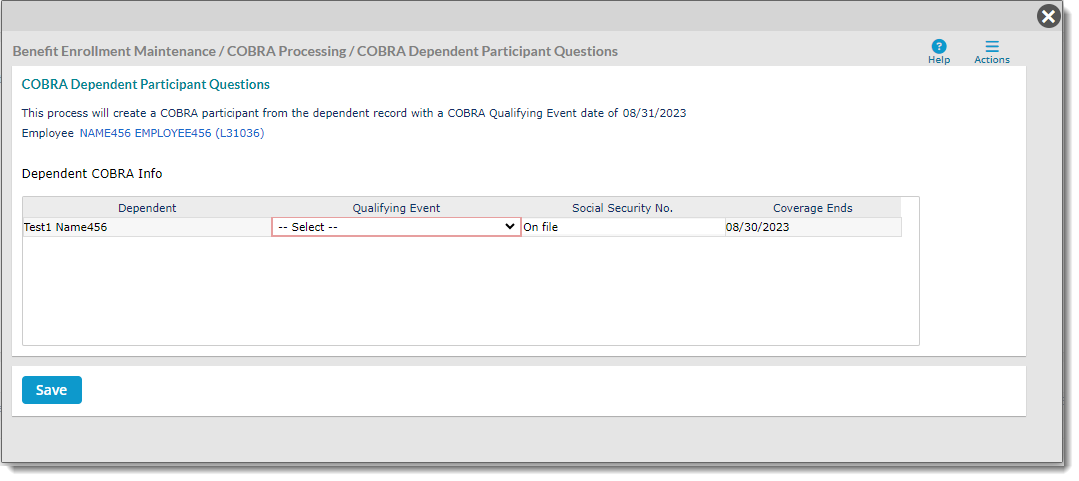
The system determines the Qualifying Event Date and Coverage End Date for you depending on the scenario. In our example, the terminated dependent was already covered under an existing Coverage Detail record. A new Coverage detail record with a new Coverage Effective Date was added. Therefore, in our example above, the Qualifying Event Date is the same as the Coverage Effective Date we entered, and the Coverage End Date is set as the day before the Coverage Effective Date.
-
Select the Qualifying Event.
Note: If your access privileges allow, you can also edit the Social Security No. field. Updating the Social Security No. field on the COBRA Dependent Participant Questions form also updates the Social Security Number field on the Employee Dependents form (Benefit Enrollment Maintenance > Benefit Enrollments > Employee Dependents).
-
Click Save on the COBRA Dependent Participant Questions form.
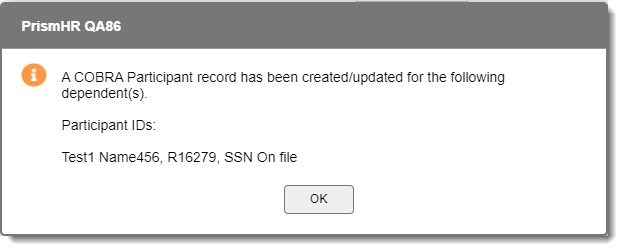
A final confirmation message displays listing all dependents whose COBRA Participant records have been added or updated:
-
Click OK on the confirmation message.
-
The Employee Benefits Enrollment record is saved and the COBRA Participant record is updated or added with the Coverage Effective Date, Qualifying Event, Qualifying Event Date and Coverage End Date.
Note: In our example scenario, a new COBRA Participant Record is added because the new Coverage Detail record Effective Date/ Qualifying Event Date is different on the previous Coverage Detail record. If we had added new Coverage Details using the same Coverage Effective Date/Qualifying Event Date, the existing COBRA Participant record associated with these coverage details would have been updated.
If you select No: The Employee Benefits Enrollment record is saved. The process of terminating the dependent is complete with no further action required. The prior Coverage Detail record that included the terminated dependent(s) is updated with the Coverage End Date. The Coverage End Date is the day before the new Coverage Detail record effective date and is displayed in the Coverage End Date column of the "Covered Dependents" section on the Employee Benefits Enrollment record.
-
How Dates Are Determined When Terminating Dependent Coverage
When Terminating Dependent Coverage By Entering an End Date on an Existing Coverage Detail Record:
-
Coverage End Date in the "Dependent [dependent's full name] was covered before but will not be as of..." message that displays when you enter the End Date on the existing Coverage Detail record and click Save = Coverage End Date you entered on the Coverage Detail record + one day.
-
Coverage End Date in the "Covered Dependents" section of the Employee Benefits Enrollment record = The Coverage End Date you entered on the existing Coverage Detail record.
-
New Qualifying Event Date/Coverage Effective Date on the COBRA Participant record (if applicable) = Coverage End Date you entered on the existing Coverage Detail record.
When Terminating Dependent Coverage By Adding a New Coverage Detail Record for an Existing COBRA Participant with the Same Qualifying Event Date
-
Coverage End Date in the "Dependent [dependent's full name] was covered before but will not be as of..." message that displays when you add the new Coverage Detail record and click Save = Effective Date you entered on the new Coverage Detail record.
-
Coverage End Date in the "Covered Dependents" section of the Employee Benefits Enrollment record = The date the coverage actually ended, which is the day before the new Coverage Detail record Effective Date.
-
New Qualifying Event Date/Coverage Effective Date on the COBRA Participant record (if applicable) = Effective Date you entered on the new Coverage Detail record.
When Terminating Dependent Coverage By Adding a New Coverage Detail Record for an Existing COBRA Participant with a Different Qualifying Event Date
-
Coverage End Date = Effective Date you entered on the new Coverage Detail record.
-
Coverage End Date in the "Covered Dependents" section of the Employee Benefits Enrollment record = The date the coverage actually ended, which is the day before the new Coverage Detail record Effective Date.
-
New Qualifying Event Date/Coverage Effective Date on the COBRA Participant record (if applicable) = Effective Date you entered on the new Coverage Detail record.
Note: There is no difference between the way the dates are determined when an existing COBRA dependent is terminated by adding a new coverage detail record with the same OR different qualifying event dates. The system uses this distinction to determine whether to create a new COBRA Participant record or update the existing COBRA Participant record (if you selected the option to add the new coverage details to a COBRA Participant record.)
New Qualifying Event Date = New COBRA Participant record. Same Qualifying Event Date = Updated COBRA Participant record.
When Terminating Dependent Coverage by Adding a New Coverage Detail Record for a New COBRA Participant
- Coverage End Date = Effective Date you entered on the new Coverage Detail record.
-
Coverage End Date in the "Covered Dependents" section of the Employee Benefits Enrollment record = The date the coverage actually ended, which is the day before the new Coverage Detail record Effective Date.
-
New Qualifying Event Date/Coverage Effective Date (if applicable) = Effective Date you entered on the new Coverage Detail record.
