Manually Enrolling Employees in PTO Register
Use the PTO Register Enrollment form to manually enroll employees in paid time off register and set the starting hours.
Note: You can create a new enrollment even if an employee has an archived register.
Once you save the enrollment, PrismHR creates the register for the employee based on the register type and benefit plan.
Note: To make changes to the employee's PTO register values, see Adjusting Accrued or Carryover Hours for Employees
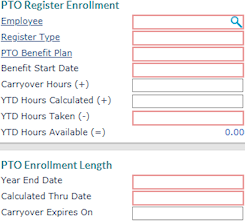
To manually enroll employees in a PTO register:
| 1. | Enter the Employee by either entering the name, Social Security Number, or ID to display a pop-up list of matching employee records. You can also click the field label or press Ctrl+Enter with your cursor in this field to open the search window. |
| 2. | Enter the Register Type used to track paid time off for this plan. |
| 3. | Enter the PTO Benefit Plan in which to enroll the employee. |
Note: PrismHR uses the Benefit Start Date to calculate the number of months the employee has worked for the client. The system uses this in conjunction with the rules defined for a paid time off plan to determine the number of hours the employee can earn during a given accrual period. The default is the employee's last hire date, but you can change this.
| 4. | Enter the Benefit Start Date. The system uses this date to calculate the number of months that the employee has worked for the client. The default is the employee’s last hire date, but you can edit it as needed. See About Benefit Start Dates. |
| 5. | Enter the Carryover Hours, which is the number of hours carried over from a previous accrual year. Typically, you would only enter this value when setting up the register for the first time. |
| 6. | Enter the YTD Hours Calculated (+), which is the starting balance of PTO hours accrued in the current year. |
Note: If you enroll an employee in a PTO plan with an initial YTD Hours Calculated (+) (accrual amount) that is greater than the Max Per Year in the PTO benefit plan, a warning message displays in the PTO Register Enrollment form when you enter the Calculated Thru Date, "Warning: no additional hours will be accrued because the initial amount is greater than the maximum accrual of <number> hours set up in the PTO benefit plan." To continue, click OK.
| 7. | Enter the YTD Hours Taken (-), which is the number of PTO hours already used in the current year. |
| 8. | Based on the entries, the YTD Hours Available (=) displays. |
| 9. | Enter the Year End Date for the current year. The default comes from the plan’s setup. |
| 10. | Enter the Calculated Thru Date, the date through which PTO hours have been accrued. See Understanding the Accrued Thru Date Field for more information on entering the correct date. |
| 11. | Enter the Carryover Expires On date when the available carryover hours expire, if applicable. |
About Benefit Start Dates
The Benefit Start Date field dictates the calculation that the system uses.
| • | You can only adjust the Benefit Start Date for employees enrolled in fiscal year registers. You cannot change it for anniversary-based registers. |
| • | When the eligibility for PTO benefits is based on seniority level (the number of months worked), the system uses its calculation based on this date to determine the employee’s seniority level. |
| • | If the client’s PTO register uses Anniversary Year End as the register type’s accrual calculation method, the system uses the date to calculate the PTO register year-end date |
Understanding the Accrued Thru Date Field
If the employee has accumulated PTO hours prior to the initialization of this PTO Register, you must enter the number of PTO hours, any carryover hours available, and the date through which the hours were accrued.
WARNING: If you do not enter the correct date in the Starting Accrued Thru Date field, PrismHR may accrue excess hours for this employee.
It is critical that you enter the correct “accrued through” date. The system accrues any PTO time from this date forward, according to the terms of the absence benefit plan and register type. To determine the date correctly, it is important to understand the client’s PTO plan; that is, does it accrue increments of PTO hours throughout the year, or perhaps deposit the whole amount at one time?
For example, an employee has three vacation days available to her at the time you take on a particular client. The employee is not scheduled to accrue any more until January 1 of the following year. You must ensure the date you enter in the Accrued Thru Date field is December 31. The next time the register is triggered, whether the it is the next pay period, end of month, or another time, PrismHR will calculate the number of days between December 31 and the trigger date.
During payroll processing, PrismHR automatically updates the employee’s PTO register with any due accruals.
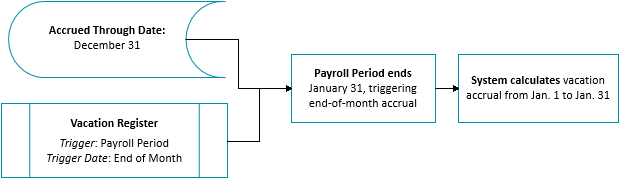
If you are going to update PTO hours more frequently, such as when increments of time are deposited each payroll period, ensure you understand exactly what “accrued through” date the client used when they submitted the employee’s PTO hours to you. Was it through the last day of the payroll period or through the pay date?
You must determine the “accrued through” date with the client to ensure the employee's PTO register accrues correctly.
