 icon in
 Controlling Dashboard Views
Use the Dashboard Access form to control which dashboard views are available for clients when they view the At a Glance Dashboard part of the Enhanced Dashboard.
Important! This is a global form whose access can be customized at a global level or at a client level using overrides, and is accessible only for service providers.
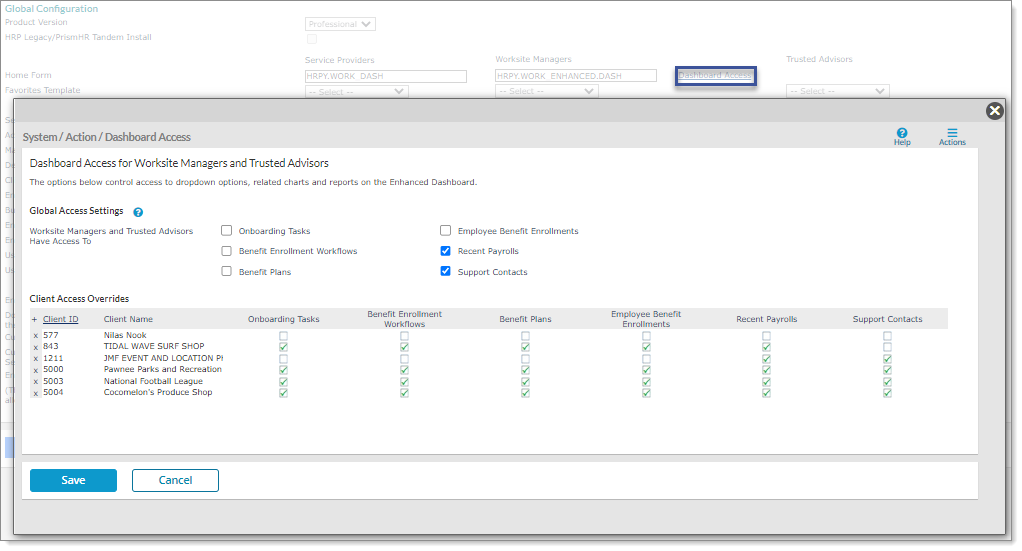
To access this form, select Dashboard Access on the Global Configuration form. For example:
Note: By default, the At a Glance view for employees will always display for all users and therefore, it cannot be controlled by this form.
Selected settings on this form control which At a Glance Dashboard views are available for clients on the Enhanced Dashboard on a global level, with the option to override these views at the client level.
Note the following regarding user access to the Dashboard Access form:
| • | If the user's access is set to Inquiry, the link displays on the Global Configuration form but is dimmed (unavailable). |
| • | If the user's access is set to Deny, the link does not display on the Global Configuration form. |
To set up At a Glance dashboard views for worksite managers and worksite trusted advisors:
| 1. | On the System|Change menu, select Global Configuration. |
| 2. | As a service provider for worksite managers or worksite trusted advisors, select Dashboard Access. |
| 3. | The following panels display where you can control the client's At a Glance Dashboard views: |
| Panel | Action | ||||||||||||
|---|---|---|---|---|---|---|---|---|---|---|---|---|---|
| Global Access Settings |
Make selections in this panel based on the options you want to display on a global level when a worksite manager or a worksite trusted advisor views the At a Glance Dashboard. For example, if you only select the Onboarding Tasks and Recent Payrolls options in this panel, only the Employees, Onboarding Tasks, and Recent Payrolls options display in the Employees menu on the At a Glance Dashboard view. (Note: The Employees menu is always enabled for all clients and is therefore not included as a controllable view.) Selecting the Support Contacts option and adding clients in the Support Contacts column displays the Support tab on the Enhanced Dashboard for worksite managers and worksite trusted advisors. However, note that the client-level custom feature code HIDE-SUPPORT-TEAM continues to hide the Support tab when you apply it to a client even when the Global Access Setting is enabled. In addition, note the following:
|
||||||||||||
| Client Access Overrides |
Make selections in this panel to override the settings in the Global Access Settings panel. Select Client ID to make a selection from the Select Clients list, then click Done. (By default, all checkboxes are unselected.) Any selections you make for this client provides them with the selected dashboard view and supersedes the settings in the Global Access Settings panel. For example, if you select Onboarding Tasks and Benefit Enrollment Workflows, those options display in the Employees menu on the At a Glance Dashboard view. Adding clients in the Support Contacts column displays the Support tab on the Enhanced Dashboard for worksite managers and worksite trusted advisors for those clients. However, note that the client-level custom feature code HIDE-SUPPORT-TEAM continues to hide the Support tab when you apply it to a client even when the Client Access Override Settings are enabled. In addition, note the following:
|
| 4. | Click Save. |
