Managers and Approvals
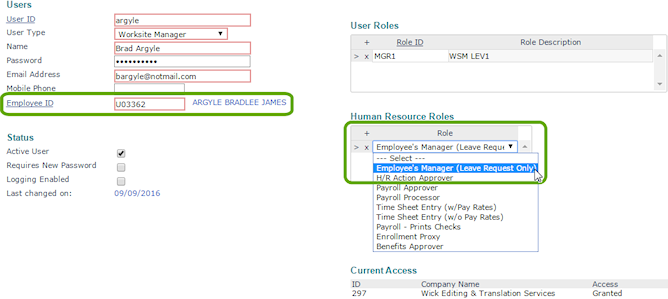
If your organization wants worksite manager or trusted advisor users to approve leave requests as employee managers, there is some set up required. The user accounts must have the correct employee IDs and roles, and employees need to have the correct managers/supervisors assigned to them.
| 1. | Set up the user account: Open the Users form (found in the Back Office menu under System|Change). |
| a. | Enter the User ID. |
| b. | Make sure the appropriate Employee ID is assigned if the user is a worksite manager. |
| c. | Make sure the user has the Human Resources Role of Employee’s Manager (Leave Requests Only). |
| d. | Click Save. |
| e. | Repeat steps a through d for each user. |
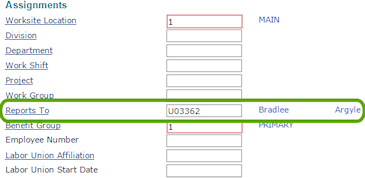
| 2. | Assign managers/supervisors to the employees: Open Employee Details (found in the under HR|Change). |
| a. | Enter the Employee by either entering the name, Social Security Number, or ID to display a pop-up list of matching employee records. You can also click the field label or press Ctrl+Enter with your cursor in this field to open the search window. |
| b. | Select the Work tab. |
| c. | Make sure the correct employee ID is entered in the Reports To field. This employee must be active. |
| d. | Click Save. |
| e. | Repeat steps a through d for each employee at the client. |
Once employees make requests, the user reviews and approves them in Approvals Pending, the same as any other approval.
Editing a Worksite Manager User
Editing a Worksite Trusted Advisor
