Setting Client Allocation Formats
Client Allocation Formats sets the presentation of each column in the Client Allocation Report (see Client Allocation Report). Formatting options include:
| • | Selects the applicable client bill format if tied to a client bill or another format describing the allocation columns. |
| • | Specifies whether to include an employee totals column. |
| • | Adds, inserts, and deletes columns and shows them as tabs in the header area. |
| • | Adds text for up to two header lines for each column. |
| • | Creates and deletes allocation codes and descriptions. |
Note: If you try to delete an existing client allocation report format, a warning appears and you are prompted for confirmation. If your user role has Inquiry access to the form, all options except for Summary and Cancel are disabled. However, you can still select a format code and click a header to show the various allocations associated with it.
To access this form and format a report:
| 1. |
Click Back Office  . . |
| 2. | From System|Change, click Client Allocation Formats. |
| 3. | Set a Format Code in either of the following ways: |
| • | Enter a value in the text box. |
| • | Click the Format Code link to open the Select Allocation Format selector. Then type a code to search or select an existing code from the list. |
| 4. | Enable Include Employee Total Column to add a column titled Employee Total as the last column in the report. The value is the total of all appropriate columns for each employee. |
| 5. | From the Report Columns panel, click + Add Column. Column Header fields and an Allocation Code grid appear. Generally, up to 10 columns can fit in a page in Landscape orientation. Additional columns appear in the exported report but may not be visible in a print-out. When a column is first added, its tab is associated with a number, such as Column 1, Column 2, and so forth. You are directed to the new column once it's created.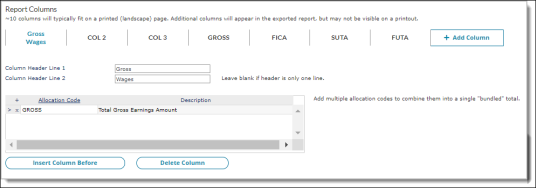 |
| 6. | Enter a column name in Column Header Line 1 and use Column Header Line 2 if needed. |
| 7. | Click + to add an allocation code to this column. You can enter a new code and description, or select an existing code by clicking the Allocation Code link and searching or selecting a code from the Select Allocation Code selector. You can only select one code at a time. |
Note: You cannot enter a duplicate Allocation Code in a client allocation format in any of the columns. (An error message displays if you enter a duplicate code.)
The following allocation codes are available:
| Allocation Code | Description | ||||||||||||||||||||||||
|---|---|---|---|---|---|---|---|---|---|---|---|---|---|---|---|---|---|---|---|---|---|---|---|---|---|
|
401K |
Allocates 401K match amount. |
||||||||||||||||||||||||
| 401KMatch |
Sums the 401k Match amounts held in the following fields of the Employee Payroll Voucher:
This amount is allocated based on the sort information entered for the report. Note: The amounts summed for this code differ from the amounts shown for the existing Allocation code 401K. |
||||||||||||||||||||||||
|
ACCR-insurance class code |
Entering ACCR- followed by a valid insurance class code collects all accrued amounts for any Benefit Plan assigned that insurance class code. Multiple lines can be entered for the column using any insurance class codes needed to sum a particular type of benefit in this column of the report. For example, medical and dental accrued amounts could be summed in one column of the report, and long and short term disability accrued amounts could be summed in another column. You can enter the following insurance codes:
|
||||||||||||||||||||||||
|
ACCR-* |
Entering ACCR- followed by an asterisk (*) collects accrued amounts for all Benefit Plans NOT using an entered insurance class code, as described above. This allows a column in the report for all other Benefit Plans. |
||||||||||||||||||||||||
|
ACCR-TOTAL |
Entering ACCR-TOTAL creates a column in the report with the sum of all the columns using ACCR-, as described above, for accrued amounts. |
||||||||||||||||||||||||
|
ADMFEE |
Allocates admin fee. |
||||||||||||||||||||||||
|
ADMFEEDIS |
Allocates admin fee discount. |
||||||||||||||||||||||||
|
ADMFEEOB |
Allocates admin fee overbill. |
||||||||||||||||||||||||
| ADMFEEMM | Allocates admin fee minimum/maximum adjustment. | ||||||||||||||||||||||||
| ALLOTHER | Sums all Client Bill Pending fields. | ||||||||||||||||||||||||
|
BC-xxxxx |
Billing Code for pending client bills. To add a billing code to the report, enter BC- and then enter your billing code. |
||||||||||||||||||||||||
|
BENEE-benefit plan code |
Entering BENEE- followed by a valid Benefit Plan Code collects the amounts paid by the employee for that benefit in this column of the report at run time. Multiple lines can be entered for the column using any Benefit Plan Codes needed to sum a particular type of employee paid benefits in this column of the report. For example, all medical benefits be summed in one column of the report, and all dental benefits in another column. |
||||||||||||||||||||||||
|
BENEE-* |
Entering BENEE- followed by an asterisk (*) collects all amounts paid by the employee for benefits NOT entered under a separate Benefit Plan Code as described above. This allows a column in the report for all other employee paid benefits. |
||||||||||||||||||||||||
|
BENEE-TOTAL |
Entering BENEE-TOTAL creates a column in the report with the sum of all the columns using BENEE-, as described above, for amounts paid. |
||||||||||||||||||||||||
|
BENCL-benefit plan code |
Entering BENCL- followed by a valid Benefit Plan Code collects the amounts paid by the client for that benefit in this column of the report at run time. Multiple lines can be entered for the column using any Benefit Plan Codes needed to sum a particular type of client paid benefits in this column of the report. For example, all medical benefits be summed in one column of the report, and all dental benefits in another column. |
||||||||||||||||||||||||
|
BENCL-* |
Entering BENCL- followed by an asterisk (*) collects all amounts paid by the client for benefits NOT entered under a separate Benefit Plan Code as described above. This allows a column in the report for all other client paid benefits. |
||||||||||||||||||||||||
|
BENCL-TOTAL |
Entering BENCL-TOTAL creates a column in the report with the sum of all the columns using BENCL-, as described above, for amounts paid. |
||||||||||||||||||||||||
| BENTOT-benefit plan code | Entering BENTOT- followed by a valid Benefit Plan Code collects the total amounts paid by the client and employee for that benefit in this column of the report at run time. Multiple lines can be entered for the column using any Benefit Plan Codes needed to sum a particular type of benefits in this column of the report. For example, all medical benefits be summed in one column of the report, and all dental benefits in another column. | ||||||||||||||||||||||||
|
BENTOT-* |
Entering BENTOT- followed by an asterisk (*) collects all amounts paid by the client and employee for benefits NOT entered under a separate Benefit Plan Code as described above. This allows a column in the report for all other client paid benefits. |
||||||||||||||||||||||||
|
BENTOT-TOTAL |
Entering BENTOT-TOTAL creates a column in the report with the sum of all the columns using BENTOT-, as described above, for amounts paid. |
||||||||||||||||||||||||
|
BUNDRATE |
Allocates bundled billing rate. |
||||||||||||||||||||||||
|
CHECKDATE |
Displays the pay date on the billing voucher. |
||||||||||||||||||||||||
| DEN | Allocates dental. | ||||||||||||||||||||||||
|
DED&TAX |
Total Payroll Deductions and Tax withheld (minus EIC Wage Base) from voucher. Total Deduction and Tax amounts are posted against first level of allocation on voucher. Any other allocation levels have zero (0) for these amounts. |
||||||||||||||||||||||||
|
DED&TAXAL |
Total Payroll Deductions and Tax withheld (minus EIC Wage Base) from voucher. Total Deduction and Tax amounts are allocated for all levels of allocation using standard allocation logic. |
||||||||||||||||||||||||
|
EAP |
Collects and allocates amounts posted against Billing Code EAP (Employee Assistance). |
||||||||||||||||||||||||
|
-EEDED- |
Allocates negative EE deductions. |
||||||||||||||||||||||||
|
-EEDED-TOTAL |
Allocates total of negative EE deductions. |
||||||||||||||||||||||||
| EEDED-deduction Code | Entering EEDED- followed by a valid deduction code collects all amounts withheld against that deduction code in this column of the report at run time. Multiple lines can be entered for the column using any deduction codes needed to sum a particular type of employee deduction in this column of the report. For example, all medical type deductions could be summed in one column of the report, and all 401k type deductions in another column. | ||||||||||||||||||||||||
| EEDED-* | Entering EEDED- followed by an asterisk (*) collects all amounts withheld against any deduction codes NOT entered under a separate deduction code as described above. This allows a column in the report for all other employee deductions. | ||||||||||||||||||||||||
|
EEDED-TOTAL |
Entering EEDED-TOTAL creates a column in the report with the sum of all the columns using EEDED-, as described above, for amounts withheld. |
||||||||||||||||||||||||
|
EENUMBER |
Allocates employee number. |
||||||||||||||||||||||||
|
EESTATUS |
Allocates employee status code. |
||||||||||||||||||||||||
|
EETAX-employee tax code |
Entering EETAX- followed by a valid employee tax code collects all amounts withheld against that employee tax code in this column of the report at run time. Multiple lines can be entered for the column using any employee tax codes needed to sum a particular type of employee taxes in this column of the report. For example, all state type employee taxes could be summed in one column of the report, and all employee local type taxes in another column. |
||||||||||||||||||||||||
| EETAX-* | Entering EETAX- followed by an asterisk (*) collects all amounts withheld against any employee tax codes NOT entered under a separate employee tax code as described above. This allows a column in the report for all other employee taxes. | ||||||||||||||||||||||||
| EETAX-TOTAL | Entering EETAX-TOTAL creates a column in the report with the sum of all the columns using EETAX-, as described above, for amounts withheld. | ||||||||||||||||||||||||
|
EETYPE |
Allocates employee type code. |
||||||||||||||||||||||||
|
EPLI |
Allocates Bond Employment Practices Liability Insurance (EPLI). |
||||||||||||||||||||||||
|
ERTAX-employer tax code |
Entering ERTAX- followed by a valid employer tax code collects all amounts withheld against that employer tax code in this column of the report at run time. Multiple lines can be entered for the column using any employer tax codes needed to sum a particular type of employer taxes in this column of the report. For example, all federal type employer taxes could be summed in one column of the report, and all employer state type taxes in another column. |
||||||||||||||||||||||||
|
ERTAX-* |
Entering ERTAX- followed by an asterisk (*) collects all amounts withheld against any employer tax codes NOT entered under a separate employer tax code, as described above. This allows a column in the report for all other employer taxes. |
||||||||||||||||||||||||
| ERTAX-TOTAL | Entering ERTAX-TOTAL creates a column in the report with the sum of all the columns using ERTAX-, as described above, for amounts withheld. | ||||||||||||||||||||||||
|
EEUSER- |
Enter the user-defined field position, such as a commission rate. For example, following the “-” for a numeric field. |
||||||||||||||||||||||||
|
EEUSERTXT- |
Enter the user-defined field position, such as a person’s name. For example, following the “-” for a text field. |
||||||||||||||||||||||||
|
FICAMED |
Allocates FICA/Medical. |
||||||||||||||||||||||||
|
FULLSSNO |
Allocates full Social Security number (not advisable). |
||||||||||||||||||||||||
| FUTA | Allocates Federal Unemployment Tax Act (FUTA). | ||||||||||||||||||||||||
|
GR-xxxxx |
Allocates Total Gross Earnings for Earning Code entered after GR-. |
||||||||||||||||||||||||
|
GROSS |
Allocates gross earned amount. |
||||||||||||||||||||||||
|
GROSS-000 |
Allocates Total Gross Earnings for Bill Code 000. |
||||||||||||||||||||||||
|
GROSS-1 |
Allocates Regular Pay. Includes all Pay Codes with Pay Method (Calculation Method) set to S (Standard) AND Rate Class set to S (Straight) or not set. |
||||||||||||||||||||||||
| GROSS-2 | Allocates Overtime Pay. Includes all Pay Codes with Pay Method (Calculation Method) set to S (Standard) AND Rate Class set to P (Premium) or D (Double). | ||||||||||||||||||||||||
|
GROSS-3 |
Allocates all other Pay Codes. Includes all Pay Codes with Pay Method (Calculation Method) NOT set to S (Standard) or if Pay Method is set to S but Rate Class is not set to S (Standard), P (Premium), or D (Double). |
||||||||||||||||||||||||
| GROSS-OTH | Allocates Total Gross Earnings NOT for Bill Code 000. | ||||||||||||||||||||||||
| HIREDATE | Allocates employee’s last hire date. | ||||||||||||||||||||||||
|
HOURS |
Allocates total hours worked. |
||||||||||||||||||||||||
|
HOURS-1 |
Allocates Regular Hours/Units Paid. Includes all Pay Codes with Pay Method (Calculation Method) set to S (Standard) AND Rate Class set to S (Straight) or not set. |
||||||||||||||||||||||||
|
HOURS-2 |
Allocates Overtime Hours/Units Paid. Includes all Pay Codes with Pay Method (Calculation Method) set to S (Standard) AND Rate Class set to P (Premium) or D (Double). |
||||||||||||||||||||||||
| HOURS-3 | Allocates all other Pay Codes for Hours/Units Paid. Includes all Pay Codes with Pay Method (Calculation Method) NOT set to S (Standard) or if Pay Method is set to S but Rate Class is not set to S (Standard), P (Premium), or D (Double). | ||||||||||||||||||||||||
|
HOURS-H |
If Pay Code is has a Pay Reason of H, meaning the Pay Code is measured in Hours, the number of hours are allocated. |
||||||||||||||||||||||||
|
HOURS-U |
If Pay Code is has a Pay Reason of U, meaning the Pay Code is measured in Units, the number of units are allocated. |
||||||||||||||||||||||||
|
HRLYRATE |
Allocates employee’s hourly rate. |
||||||||||||||||||||||||
|
HRSUNITSPAID- |
Allocates hours or units paid based on the assigned earning code. |
||||||||||||||||||||||||
|
HRSUNITSPAID-TOTAL |
Allocates total hours or units paid based on the assigned earning code. |
||||||||||||||||||||||||
|
HRSWKD-pay code |
Entering HRSWKD- followed by a valid cash/hours pay code collects all hours worked against that pay code in this column of the report at run time. Multiple lines can be entered for the column using any pay codes needed to sum a particular type of hours in this column of the report. For example, all regular type hours worked could be summed in one column of the report, and all overtime type hours in another column. Note: For the hours worked to be summed, the pay code CANNOT be set up for Units of Service. |
||||||||||||||||||||||||
|
HRSWKD-* |
Entering HRSWKD- followed by an asterisk (*) collects all hours worked against any cash/hours pay codes NOT entered under a separate pay code as described above. (This allows a column in the report for all other pay.) |
||||||||||||||||||||||||
| HRSWKD-TOTAL | Entering HRSWKD-TOTAL creates a column in the report with the sum of all the columns using HRSWKD-, as described above. | ||||||||||||||||||||||||
|
JRBCODE |
Displays the Job Rate Billing pay codes that have been allocated. |
||||||||||||||||||||||||
|
JRBHRS |
Displays the Job Rate Billing hours associated with each of the pay codes. |
||||||||||||||||||||||||
| JRBAMT | Displays the Job Rate Billing amounts associated with each of the pay codes. | ||||||||||||||||||||||||
|
JRBRATE |
Displays the Job Rate Billing pay rate for each of the associated pay codes. |
||||||||||||||||||||||||
| LIFE | Allocates Life. | ||||||||||||||||||||||||
|
LTD |
Allocates Long Term Disability. |
||||||||||||||||||||||||
|
MED |
Allocates Medical. |
||||||||||||||||||||||||
| MULT-X | Multiplies the specified column (MULT-X) against the other columns. For example, if MULT-2 and MULT-3 are placed in column 6, then column 6 contains the product of columns 2 and 3. | ||||||||||||||||||||||||
| MULT/100-X | Divides the specified column by 100 (MULT/100-X), then multiplies that value against other columns. For example, if MULT/100-6 and MULT/100- 7 are placed in column 8, then the values in column 6 and column 7 are each divided by 100, and the resulting values are multiplied together. | ||||||||||||||||||||||||
|
NETPAY |
Net Pay Amount from voucher. Net Pay amount is posted against the first level of allocation on voucher. Any other allocation levels have zero (0) for Net Pay. |
||||||||||||||||||||||||
|
NETPAYAL |
Net Pay Amount from voucher. Net Pay is allocated for all levels of allocation using standard allocation logic. |
||||||||||||||||||||||||
|
OASDI |
Allocates Federal Insurance Contributions Act/Old Age, Survivors and Disability Insurance (FICA/OASDI). |
||||||||||||||||||||||||
| OTHBEN | Allocates other benefit. | ||||||||||||||||||||||||
|
OTHTAX |
Allocates all other taxes. |
||||||||||||||||||||||||
|
OTHTAX2 |
NOT USED |
||||||||||||||||||||||||
|
OTHTAX3 |
NOT USED |
||||||||||||||||||||||||
|
PAYAMT-* |
Entering PAYAMT- followed by an asterisk (*) collects all amounts paid against any cash pay codes NOT entered under a separate pay code as described above. This allows a column in the report for all other pay. |
||||||||||||||||||||||||
|
PAYAMT-pay code |
Entering PAYAMT- followed by a valid cash pay code collects all amounts paid against that pay code in this column of the report at run time. Multiple lines can be entered for the column using any pay codes needed to sum a particular type of pay in this column of the report. For example, all regular type pay could be summed in one column of the report, and all bonus type pay in another column. |
||||||||||||||||||||||||
| PAYAMT-TOTAL | Entering PAYAMT-TOTAL creates a column in the report with the sum of all the columns using PAYAMT-, as described above, for amounts paid. | ||||||||||||||||||||||||
|
PAYDATE |
Allocates pay date (forces to detail). |
||||||||||||||||||||||||
|
REBATE |
Allocates deduction rebate billing. |
||||||||||||||||||||||||
|
SALESTAX |
Allocates sales tax amount. |
||||||||||||||||||||||||
|
STD |
Allocates Short Term Disability. |
||||||||||||||||||||||||
| SUTA | Allocates State Unemployment Tax Act (SUTA). | ||||||||||||||||||||||||
|
SUBTOTAL- |
Entering SUBTOTAL creates a sub-total column within the report. Enter the code with another column number from the template after SUBTOTAL-. Multiple lines can be entered for the column, and all columns entered are sub-totaled with in the column using this code. For example, if SUBTOTAL-5 and SUBTOTAL-7 are entered as Allocation Codes within column 8, column 8 within the report displays the sum of columns 5 and 7. |
||||||||||||||||||||||||
|
TERMDATE |
Allocates employee termination date. |
||||||||||||||||||||||||
|
TEXT- |
The text entered after this code displays in the column of the report. This column of text is the same for all records and can ONLY be displayed in download versions (not printed) of the report. |
||||||||||||||||||||||||
| TIPCR | Collects and allocates amounts for Pay Codes that have a Pay Class of RT (Reported Tips) and a Cash/Non-Cash of N (Non-Cash). | ||||||||||||||||||||||||
| TIPCRINCL | Collects and allocates amounts for Pay Codes that have a Pay Class of RT (Reported Tips) and a Cash/Non-Cash of N (Non-Cash) included in the employee total. | ||||||||||||||||||||||||
|
VIS |
Allocates vision. |
||||||||||||||||||||||||
| W/C | Allocates Workers’ Compensation. | ||||||||||||||||||||||||
|
WCCOST |
Allocates Workers’ Compensation cost. |
||||||||||||||||||||||||
|
WCCP |
Allocates Workers' Compensation client premium. |
||||||||||||||||||||||||
|
WCCREDITBACK |
Allocates Workers’ Compensation credit back for tips. |
||||||||||||||||||||||||
|
WCDISC |
Allocates Workers’ Compensation discount. |
||||||||||||||||||||||||
|
WCTRIA |
Allocates Workers’ Compensation Terrorism Risk Insurance Act (TRIA). |
Note: You can only use these allocation codes with the mvQuery version of the Client Allocation Report.
| 8. | Click Insert Column Before to create a new tab to the left of the currently selected tab or click Delete Column to remove the currently selected column and move remaining columns one column to the left. |
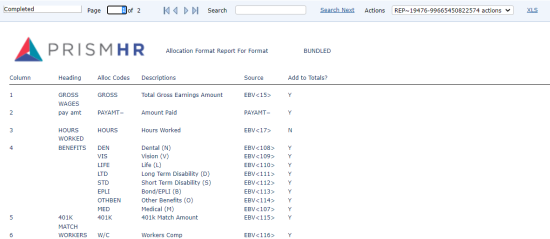
| 9. | Click Summary Report if you want to generate a summary report in PDF format. |
| 10. | When the process is complete, click Close to generate a summary report in PDF format. |
| 11. | Click Save to commit the changes. |
The following example shows part of a summary report.
Note: See Setting Client Allocation Report Parametersfor more information.
