Viewing Payroll Batches in SuperBatch
To view the payroll batches in SuperBatch, enter the Pay Date Up To and specify a Payroll Processor. The SuperBatch form displays the incomplete batches that are assigned to the payroll processor. A payroll batch is considered to be incomplete until it has been successfully posted.
To view the payroll batches:
| 1. | Enter a check Pay Date Up To to include all incomplete payroll batches that require payroll processing and are due on or before that date. The default is one week from the current date. |
| 2. | If you are a payroll manager, select the Payroll Processor. The incomplete payroll batches assigned to that payroll processor display. |
| 3. | To further filter the payrolls that display: |
| • | If you want to view only self-service payrolls, select the Self Service Only option in the Self Service filter. To view payrolls that are not self-service, select Not Self Service. |
| • | If you want to view specific payroll types, select an option in the Payroll Type filter. |
| 4. | The icons in the top-right corner of the SuperBatch form help you perform the following actions: |
| Icon | Description |
|---|---|
|
Payroll Transfer |
Displays the SuperBatch Payroll Transfer form, where you can transfer all currently viewed payrolls or selected payrolls to another payroll processor. (Select the payroll processor and click Update.) Note: If you select multiple payrolls and then click this icon to change to a new payroll processor, only the payrolls you selected are updated, not those in the entire view. |
|
Filter Selection |
Displays a search form, where you can enter information to narrow the payroll assignments that display. (Enter the search information and click Apply.) |
|
Refresh Existing Filter |
Refreshes payrolls that display based on the existing user and selected filters/settings. Note: This filter can also act as a "reset" for payrolls. |
|
Reset Filters |
If you filtered the payrolls to only display payrolls associated with a particular step, select this icon to refresh the display so all payrolls associated with the selected filters redisplay. |


| 5. | Click  to enter or adjust time sheet information. See Entering Time Sheets for more information.) to enter or adjust time sheet information. See Entering Time Sheets for more information.) |
Working with the Ribbon
After filtering the payrolls using the options above, a ribbon displays the steps for the payrolls in-progress. For example:
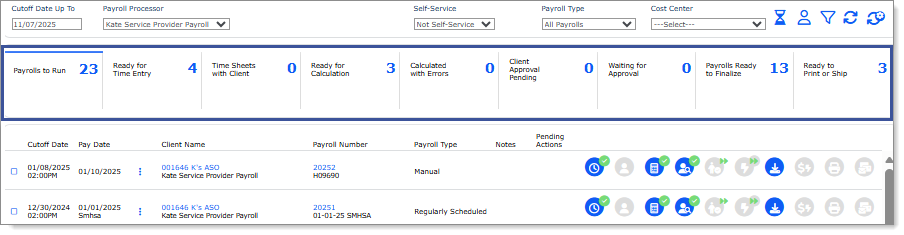
Note: Each step displays the number of payrolls associated with it.
To further filter the payroll display, click a step in the ribbon to display all the payrolls in that step. (Some of these filters can include several statuses, which you can select as a group or individually.) For example, clicking Ready for Time Entry in the example above displays the payrolls matching that criteria:
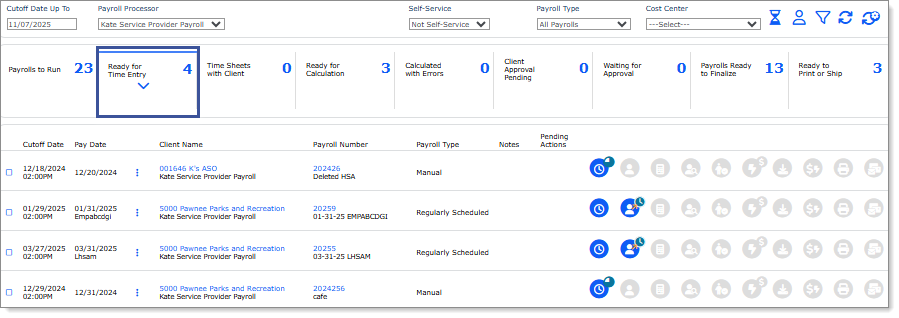
Note: A blue selection bar and chevron down arrow display within a step when you click it, so you can easily determine which step is selected in the ribbon.
Note the following when viewing payrolls:
| • | If your organization separates the print/ship function, then the service provider with the payroll processor (Print/Mail) role will see the Delivery Date instead of the Cutoff Date. |
| • | Service providers who have worksite managers and worksite trusted advisors processing payroll using Self Service can view a payroll when the client is set up with a wire payment, so they can quickly monitor when to mark a payment as received so the client can continue processing. |
Important! This feature is only available when Self-Service Payroll is enabled and the Self-Service Restrictions field is set to Print or Select (Null) on the Payroll tab on the Client Details form for the client and that client has wire set up for ACH status. When the payroll moves to WT.PEND status in these scenarios, you can view it as a service provider in the SuperBatch.
